The Selected Branch Report
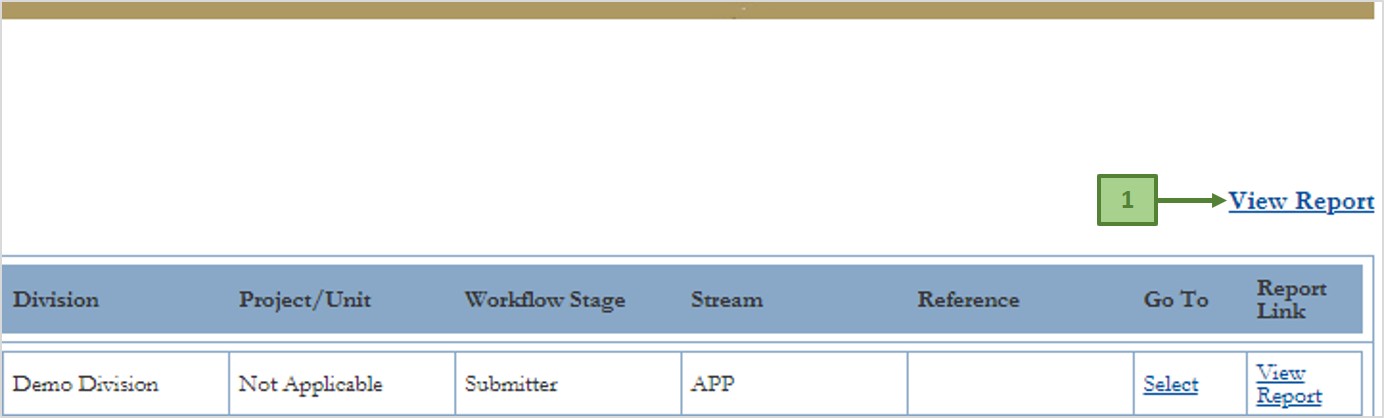
Clicking the View Report link labelled 1 on the image above also takes you to the SAP BusinessObjects log on page. This time, after you have logged on, you must select the report you want, as follows;
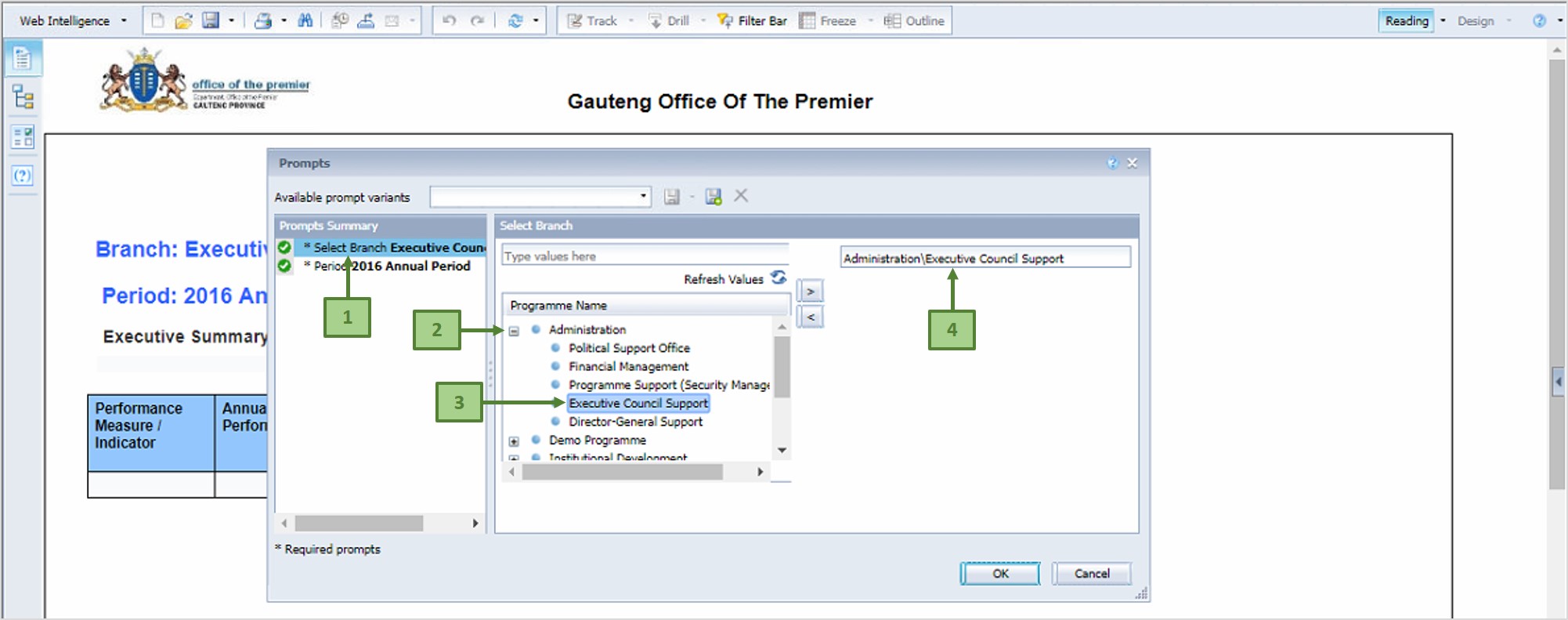
- On the pop-up dialog, first select the branch you want by cicking on the *Select Branch menu (label 1). This displays all the Programmes in your Department
- Click on the + sign next to the desired Programme to expand it (label 2), and double-click on the desired Branch within the Programme (label 3)
- The selected Branch gets displayed (label 4).
- Then select the desired reporting period - see image below;
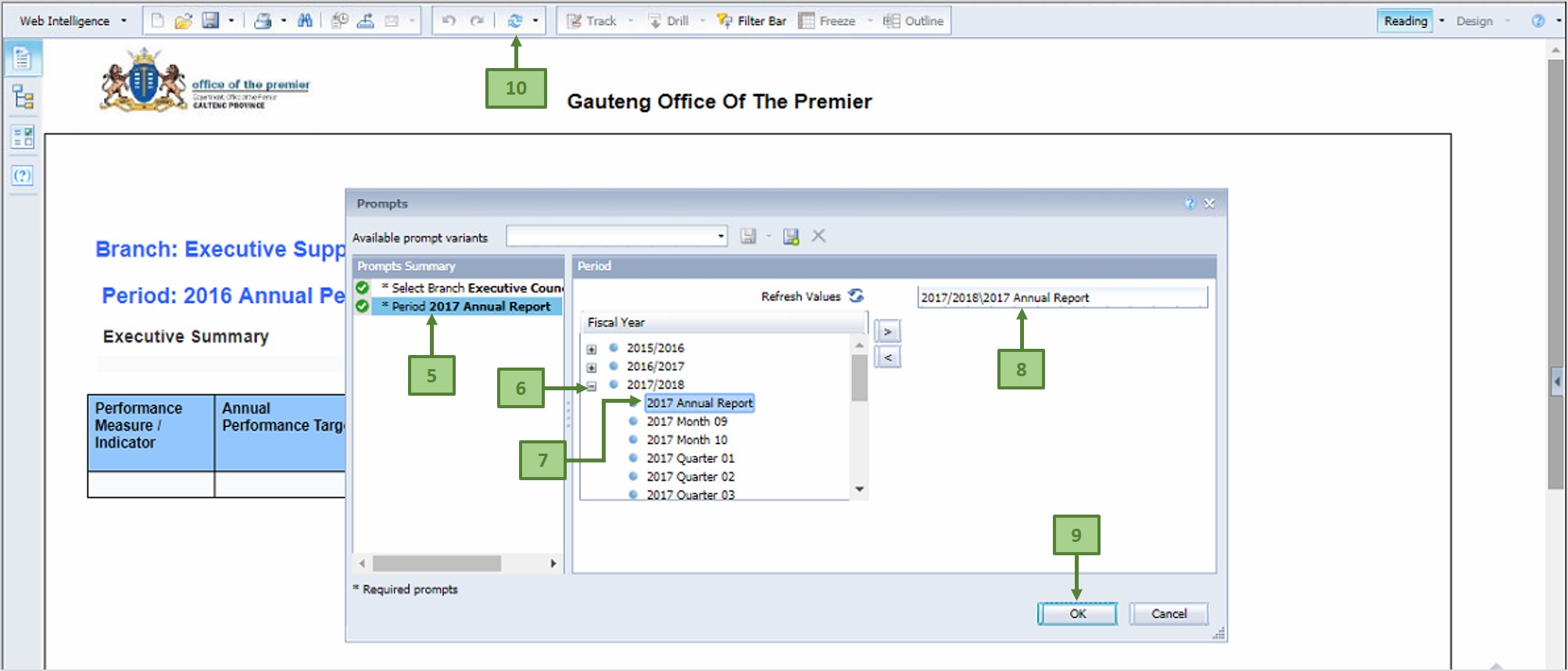
To selectthe desired reporting period
- Click on the *Period menu (label 5)
- Click on the + sign next to the desired Fiscal Year (label 6), double-click on the desired Reporting Period within the selected Fiscal Year (label 7)
- The selected Reporting Period gets displayed (label 8)
- Then click OK (label 9)
- To repeat these steps or to select another branch report, click on the Refresh button (label 10)
To save the report to your computer, click on the Export button (label 1 on the image below)
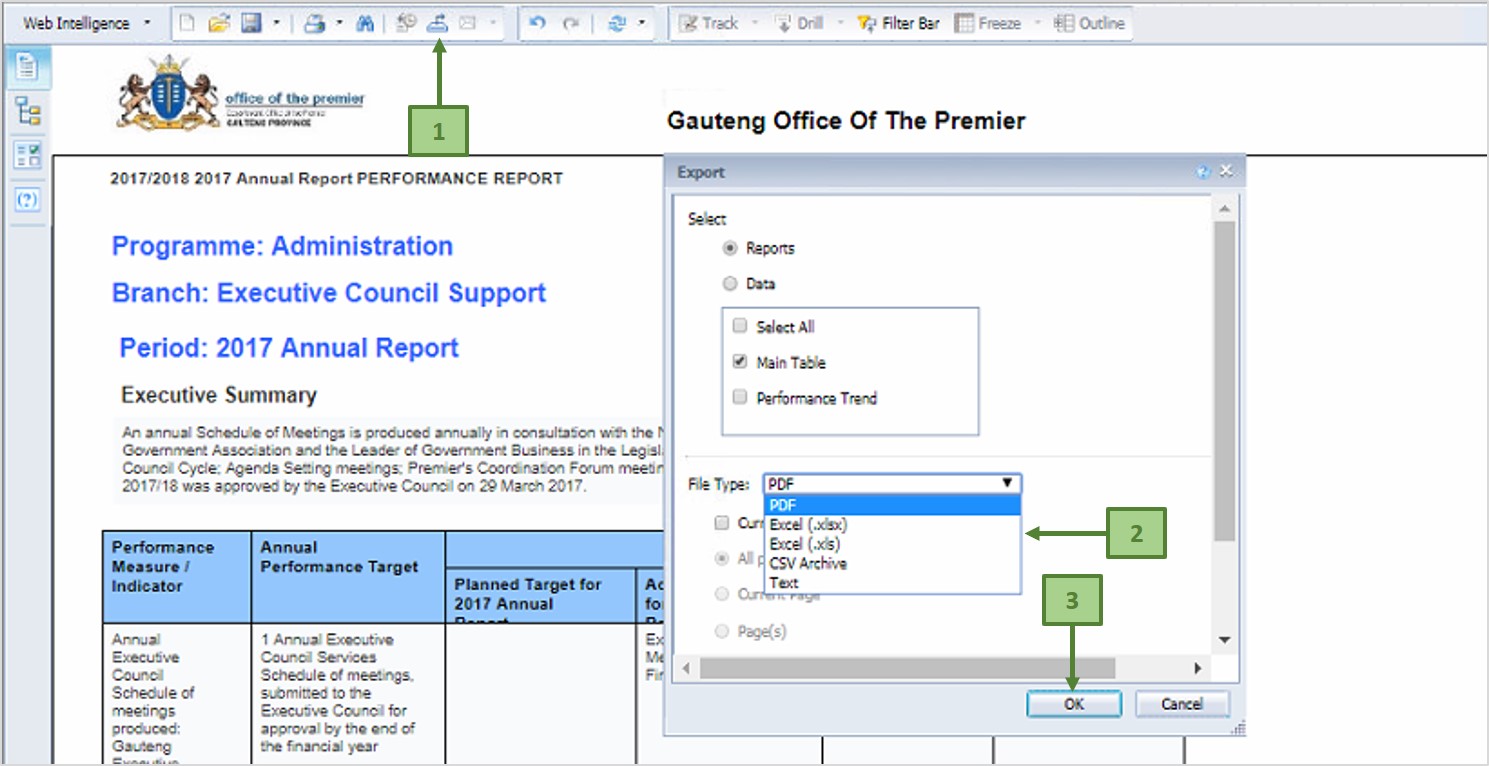
Then, on the pop-up dialog, select the desired file type from the File Type drop-down list (label 2) and click OK (label 3)
You can only access the SAP BusinessObjects reports when you are inside the premises of the Gauteng Provincial Government - (back)